
Set up a proxy with SSH and SOCK5
Since several colleagues have told me about it lately, I have decided to expand an old post, and leave, as a reminder, this post on how to leave via an internet connection other than the one you are using on your computer.
Basically what we are going to do is the following:
OurPC ==> (Internet Provider X) ==> SSH SERVER ==> (Internet Provider Y)
The idea is, if for example we have a blocked connection, or we want to load a website from the office as if we were a client, or simply change IP. What we must do is generate a tunnel which takes us directly to the exit point and from local connect via proxy to this tunnel.
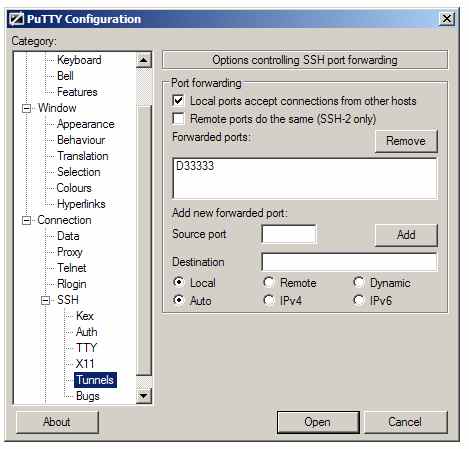
We go in parts, the first thing is to generate the tunnel, we enter the address of the SSH server as if we were usually connecting to the destination server. In the Connection / SSH / Tunnels section we must enter the port where we are going to open the proxy, I recommend doing it one greater than 1024, for example 33333, click “Add”, and connect to the server.
From Windows we can use Putty:
From GNU/Linux:
ssh -D 33333 sh.outputserver.com
At this moment we already have our tunnel prepared, yes, it’s that simple!! Now all that remains is to configure the browser so that our web requests go through the tunnel to the destination. It is very similar in any browser, we are going to present it in Firefox, simply because it is cross-platform, in the same way it would be in Internet Explorer, Opera, or Chrome.
We only have to configure our network connection within the browser, in the manual configuration we have to put the host we want to connect to is type Sock5, the host our local, 127.0.0.1, and the port the one we have designated when creating the tunnel, in this case 33333.
To check that everything works, open any page in the browser, and once we have seen that we have internet, to make sure that our IP has changed to the destination one, we can go to www.whatismyip.org, and it will show us a different IP, that of Provider Y.